

-
Live Activities essentials
Elevate your app experience with Live Activities. Explore many of the places where Live Activities appear, including a new style in the Dynamic Island that delivers more information when iPhone is used in landscape. Learn how to tailor your Live Activity for each space, structure your content and data, and drive real time updates from start to finish using ActivityKit and push notifications.
Chapters
- 0:01 - Introduction
- 1:53 - Create and update
- 9:51 - Optimize
Resources
- Human Interface Guidelines: Live Activities
- Starting and updating Live Activities with ActivityKit push notifications
- ActivityKit
Related Videos
WWDC24
WWDC23
-
Search this video…
Hi, I'm Adi, and I'm a System Experience Engineer.
Today, I'll cover the essentials for building Live Activities and how to make them shine on every screen. I'll start with an overview of the experience that Live Activities offer, and I'll go into how your app can create them and keep them up-to-date.
Then, I'll touch on how you can further optimize them for your app.
Live Activities are a great way for apps to provide timely and glanceable updates for something that's happening right now - like this one, from the MLB app. It keeps track of someone's favorite teams and shows a Live Activity when they're playing. People stay up-to-date with the score, the current inning, and key game updates, right from the Lock Screen, And on the Home Screen or when using apps, they appear right in the Dynamic Island, so people never miss a thing.
Live Activities can also expand to show more information from the Dynamic Island. This occurs when an alerting update happens or when someone long-presses on it. The expanded view provides even more space to let people know about essential updates.
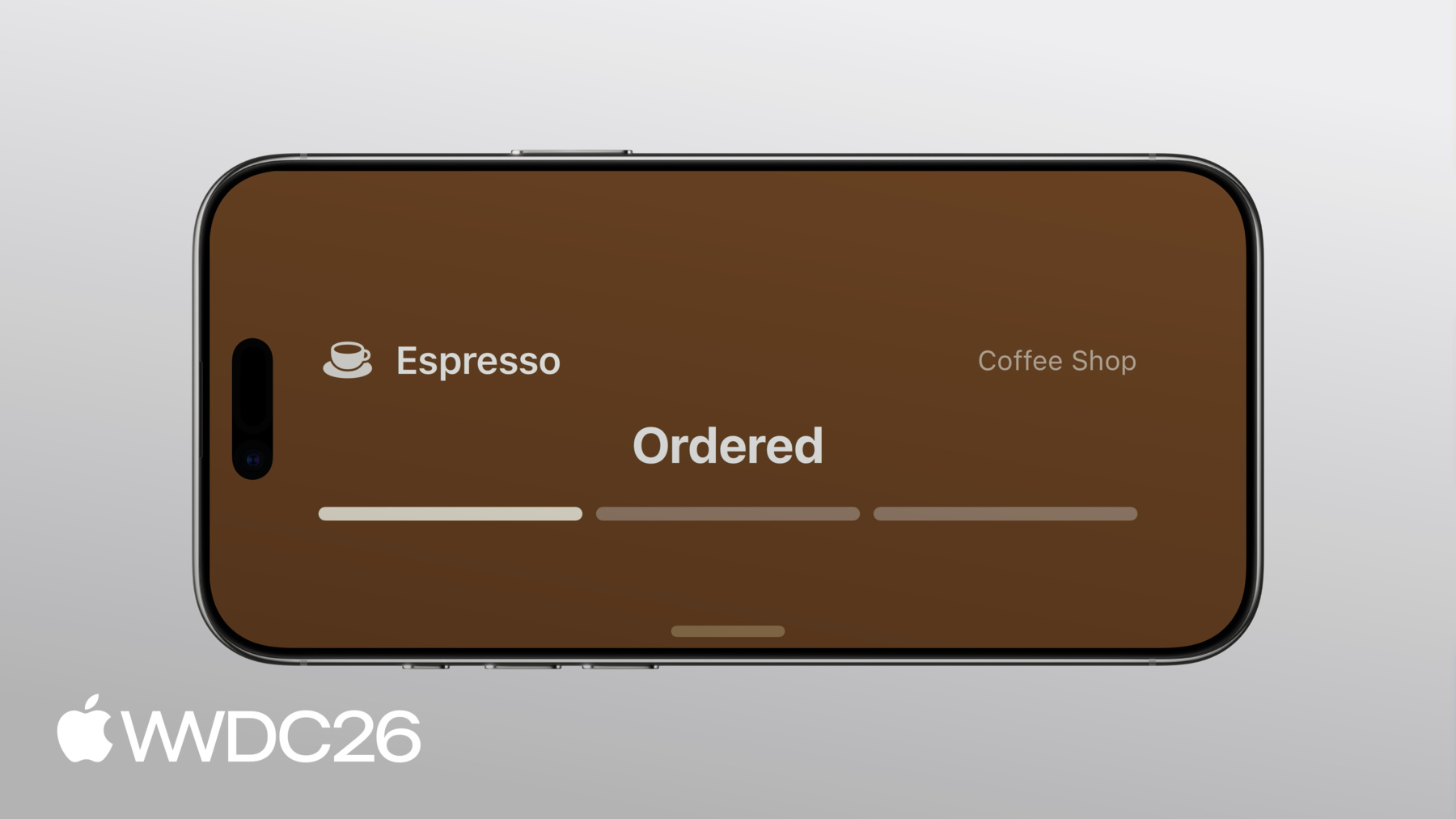
And in iOS 27, Live Activities are visible in the Dynamic Island, when in portrait and landscape.
They also appear in other places too, like in StandBy, when iPhone is in landscape and charging.
When your app runs a Live Activity on iPhone, it automatically appears on other Apple devices. Including right on Apple Watch, in the Smart Stack.
In the macOS menu bar or right on the CarPlay Dashboard. This makes it super easy for people to glance at the key information they need from your app, no matter where they are.
To bring Live Activities to your app, I'll cover how they get created, and how your app keeps them up-to-date.
It starts by planning your data model so that your Live Activity's updates can be fast and efficient. Then, create the basic views in each of its key presentations. Finally, I'll provide updates, either from the app when it's running or through push notifications in the background. I'll start with the data model.
To explore how to do this, I'll add a Live Activity to an app that I'm working on. It lets me order coffee from a local coffee shop. I can pick my favorite drink and customize it, just the way I like it. When I'm done, I send my order to the store for pickup.
The first step to building a Live Activity is to come up with a great design.
They're meant to provide immediate, glanceable information. You'll want to craft a design that prioritizes the key things people need to know over time. For inspiration, check out the Human Interface Guidelines for help designing your Live Activity and check out the session, "Design dynamic Live Activities". For this app, I'll use my initial designs for the Lock Screen to start planning the data model. It will have different presentations for when the order is placed, when it's being worked on, when it's ready for pickup, and a brief opportunity to leave feedback after I'm done. I'll need to consider which parts of the data are static, and which parts of the data are dynamic. That's because Live Activities treat static and dynamic data differently in order to provide efficient updates. Only the dynamic data can be updated during the lifetime of a Live Activity.
Data that never changes will be contained in a struct, that conforms to the ActivityAttributes protocol. Values that do change over time, are part of a separate ContentState struct.
In the coffee order, there are a few things that are static and won't change. An order always stays with the same coffee shop, so the name of the shop is static. The drink that someone orders also won't change but the status of the order, as well as the remaining time, are dynamic. The app will update those values over time.
To create a data model for this Live Activity, I'll import ActivityKit and create a DrinkOrderAttributes struct conforming to ActivityAttributes.
Then, I'll add properties for all of the static data: the name of the shop, the drink for the order, and a unique identifier that my server uses to track each order.
Then, I'll add a ContentState struct containing the dynamic data.
This includes the order's phase, like whether it's being prepared, or ready for pickup, as well as the estimated ready time, and the rating left for the order.
And that's it! Now that I have the data model in place, I'll build the views for the Live Activity.
The interface for a Live Activity is built using WidgetKit. To get started, add a widget extension to your app, if you don't already have one. There, you'll provide an ActivityConfiguration that describes its views. Each presentation of Live Activity is a SwiftUI view, which reads the attributes and content state provided to it. If you're new to SwiftUI, check out the video "SwiftUI essentials".
For the drink order, I'll start by creating an ActivityConfiguration in my widget extension.
By specifying the DrinkOrderAttributes type, these views will be associated with the right Live Activity.
The content closure provides the SwiftUI view that should appear. In this case, I've a view called ActivityView. To show the right values, like whether the coffee is being prepared or ready, it uses the context parameter. The context contains the attributes and the most recent content state that should be rendered. Next, I'll provide views for the Dynamic Island.
The first three are: compactLeading, compactTrailing, and minimal views. These views are small and appear when someone isn't actively interacting with it. Carefully consider which information is essential from the larger presentation to appear in these views.
For the coffee order, the leading view shows a symbol for the type of drink I ordered, while the trailing view has a label for the order's phase. I'll also provide the minimal view. This view may appear when multiple Live Activities are running.
Minimal views should provide the most essential information that someone will glance at. For this order, it provides a circular gauge showing the time remaining.
Finally, I'll build up the expanded view in the Dynamic Island. This view is much larger and can accommodate more information, similar to the Lock Screen view.
It consists of multiple regions that surround the sensors on iPhone. In each closure, I'll provide a view for each of the regions I need in a DynamicIslandExpandedRegion block.
Now that the data model and views are built, it's time to start the Live Activity and keep it up-to-date.
Live Activities can be started in a few different ways. Using the ActivityKit framework, you can start one directly any time your app is running in the foreground or a Live Activity can be scheduled to start in advance at a specific time. Alternatively, you can also start it from a push notification.
The simplest way is to use ActivityKit. For my app, I'll start by checking if Live Activities are authorized. Then, I'll create an instance of the DrinkOrderAttributes struct for the order. I'll fill in the static data, like the coffee shop name and the drink ordered.
Then, I'll construct the contentState, which contains the initial values for the dynamic data of this Live Activity.
I'll set the first phase of the order, the ordered phase, and most drinks are ready in 15 minutes... so I'll set an initial ready time of 15 minutes from now.
The contentState of a Live Activity also has a staleDate. A staleDate lets you specify when this content should be considered out-of-date. When the content is stale, your Live Activity views can indicate that. For now, I won't set a staleDate for a coffee order.
Then, I'll request the system start a Live Activity using the attributes and content I've defined.
While the Live Activity is running, it's just as easy to update. Call the .update method on the activity with a new ContentState, as well as a new staleDate. Live Activities can also be updated with push notifications. There are two strategies to choose from.
First, you can broadcast updates. This is a great choice when you have hundreds, thousands or more people running the same Live Activity at the same time. With this strategy, your server sends updates to everyone using a broadcast channel. Then, you configure the Live Activity to subscribe to that channel for its updates.
The other strategy, is to use push notifications. This is great for all other use cases. The server can send push notifications to target updates to specific devices. For this strategy, you'll obtain a push token for the Live Activity and use that to send each update. To learn more, the documentation has a great guide on how to use ActivityKit push notifications.
So far, I've covered just the first steps with Live Activities. Next, I'll share how to go even further to optimize them.
I'll discuss adding more customized presentations and bringing interactivity to the views.
I'll start with further refining their presentations.
In iOS 27, the Dynamic Island compact and minimal views are visible in both portrait and landscape. In portrait, compact views are flexible in width but in landscape, they don't have room to grow in width. Your Live Activity needs to account for when the Dynamic Island is constrained in width like this. Here's the implementation of the CompactTrailingView for the coffee order. It's a SwiftUI view that either shows the estimated time for the drink order, if there's one available, or it shows the label for the order's phase, like the string "Ready".
I'll start by adding the environment value isDynamicIslandLimitedInWidth, then I'll adjust the View body. When the Dynamic Island is limited in width, I'll display an alternate trailing view that shows an icon of the order's progress instead.
Now, the new trailing view fits nicely into the limited width.
Another presentation to consider is StandBy, which can appear when iPhone is charging in landscape.
In this presentation, the Lock Screen view is used, scaled up to 200%. The gradient background that works great on Lock Screen makes the activity feel small and doesn't fill the screen, leaving a lot of blank space. To fix this, I'll adjust how my Live Activity's view displays its background. I'll add the showsWidgetContainerBackground @Environment value to the view. This value is true on the Lock Screen, so there, I'll apply my gradient .background. Next, I'll use the .activityBackgroundTint on the View to set a recognizable background color otherwise.
Now, the Live Activity presents an edge-to-edge background tint color in StandBy.
Live Activities also appear in the Smart Stack on Apple Watch and in CarPlay. To customize them for these places, just add support for the small device family.
Live Activities are automatically forwarded from iPhone to CarPlay and use my ActivityView by default. This view looks great on Lock Screen but doesn't fit well in the space.
To adapt for this layout, first declare support for the small activity family. This indicates to the system that your views are adapted to this smaller format.
Then, add the activityFamily @Environment value to the View and provide a customized view for this presentation when the value of activityFamily is .small.
Now the Live Activity looks great everywhere!! People love being able to get access to your app's glanceable information while on-the-go.
To learn even more about adapting views for the small activity family, check out the session, "Bring your Live Activity to Apple Watch".
Live Activities can be a great opportunity for people to take quick, immediate actions. You can provide this by adding interactivity. When an order is complete in the coffee app, I want to make it easy for people to rate their order. To do this, each button in the Live Activity is associated with an App Intent. When someone taps a button, the system executes the associated intent.
In the implementation, the RateDrinkIntent conforms to LiveActivityIntent, and it takes two parameters, the ID for the order and a boolean describing whether the rating was positive or not.
The perform method is where the app's logic is implemented. When either button is tapped, this function will run. The app can implement this method to do all of the work involved, like sharing this rating back with the server and updating the database.
Finally, I'll update the ratings Button View, which is used in both my ActivityView and DynamicIslandExpandedRegion. I'll add two buttons for each intent, and can create a RateDrinkIntent for each action.
Live Activities are a great way to keep people updated about things they care about that are happening in real time. Now you're empowered to get started with them in your apps.
Some next steps are - build Live Activities with the ActivityKit and WidgetKit frameworks; use attributes and content state to model your static and dynamic data for efficient updates; create outstanding presentations on the Lock Screen, in the Dynamic Island, and more; use ActivityKit and push notifications for timely updates to its data; And curate each experience, like in landscape, in StandBy, on Apple Watch, and others. Thanks for watching!
-
-
4:16 - Define initial Live Activity
// Define initial Live Activity. import ActivityKit import Foundation public struct DrinkOrderAttributes: ActivityAttributes { let shopName: String let drink: Drink let orderID: UUID public struct ContentState: Codable, Hashable { var phase: DrinkOrder.Phase = .waiting var estimatedReadyDate: Date var rating: DrinkOrder.Rating? } } -
5:35 - Create each Live Activity view
// Create each Live Activity view import ActivityKit import SwiftUI import WidgetKit struct DrinkOrderLiveActivity: Widget { var body: some WidgetConfiguration { ActivityConfiguration(for: DrinkOrderAttributes.self) { context in ActivityView(context: context) } dynamicIsland: { context in DynamicIsland { DynamicIslandExpandedRegion(.leading) { ExpandedLeadingView(context: context) } DynamicIslandExpandedRegion(.center) { ExpandedCenterView(context: context) } DynamicIslandExpandedRegion(.trailing) { ExpandedTrailingView(context: context) } DynamicIslandExpandedRegion(.bottom) { ExpandedBottomView(context: context) } } compactLeading: { CompactLeadingView(context: context) } compactTrailing: { CompactTrailingView(context: context) } minimal: { MinimalView(context: context) } } } } -
7:43 - Start and update a Live Activity
// Start a Live Activity func launchLiveActivity(order: DrinkOrder) throws { guard ActivityAuthorizationInfo().areActivitiesEnabled else { return } let attributes = DrinkOrderAttributes(shopName: "Coffee Shop", drink: order.drink, orderID: order.id) let estimatedReadyDate = Date.now + (15 * 60) let contentState = DrinkOrderAttributes.ContentState(phase: .waiting, estimatedReadyDate: estimatedReadyDate) let activityContent = ActivityContent(state: contentState, staleDate: nil) let activity = try Activity.request(attributes: attributes, content: activityContent) } // Update a Live Activity await activity.update( ActivityContent( state: DrinkOrderAttributes.ContentState( phase: .preparing, estimatedReadyDate: estimatedReadyDate ), staleDate: nil ) ) -
10:33 - Optimize for limited width in the Dynamic Island
// Optimize for limited width in the Dynamic Island struct CompactTrailingView: View { @Environment(\.isDynamicIslandLimitedInWidth) var isDynamicIslandLimitedInWidth var context: ActivityViewContext<DrinkOrderAttributes> var body: some View { if isDynamicIslandLimitedInWidth { StepProgressIconView(context: context) } else if context.state.phase.showsTimer { EstimatedReadyView(context: context, font: .system(.body).monospacedDigit()) .multilineTextAlignment(.trailing) .frame(maxWidth: maximumTimerLabelWidth) } else { OrderPhaseLabelView(context: context, font: .caption2.bold(), color: .brown) .multilineTextAlignment(.trailing) } } } -
11:34 - Extend background color in StandBy
// Extend background color in StandBy struct ActivityView: View { @Environment(\.showsWidgetContainerBackground) var showsWidgetContainerBackground var context: ActivityViewContext<DrinkOrderAttributes> var body: some View { DetailView(context: context) .background { if showsWidgetContainerBackground { LinearGradient.barista } } .activityBackgroundTint(.espresso) } } -
12:30 - Add support for activityFamily small
// Add support for activityFamily small import ActivityKit import SwiftUI import WidgetKit struct DrinkOrderLiveActivity: Widget { var body: some WidgetConfiguration { ActivityConfiguration(for: DrinkOrderAttributes.self) { context in ActivityView(context: context) } dynamicIsland: { context in DynamicIsland { DynamicIslandExpandedRegion(.leading) { ExpandedLeadingView(context: context) } DynamicIslandExpandedRegion(.center) { ExpandedCenterView(context: context) } DynamicIslandExpandedRegion(.trailing) { ExpandedTrailingView(context: context) } DynamicIslandExpandedRegion(.bottom) { ExpandedBottomView(context: context) } } compactLeading: { CompactLeadingView(context: context) } compactTrailing: { CompactTrailingView(context: context) } minimal: { MinimalView(context: context) } } .supplementalActivityFamilies([.small]) } } -
12:43 - Optimize for small family
// Optimize for small family struct ActivityView: View { @Environment(\.showsWidgetContainerBackground) var showsWidgetContainerBackground @Environment(\.activityFamily) var activityFamily var context: ActivityViewContext<DrinkOrderAttributes> var body: some View { contentView .background { if showsWidgetContainerBackground { LinearGradient.barista } } .activityBackgroundTint(.espresso) } @ViewBuilder var contentView: some View { if activityFamily == .small { SmallView(context: context) } else { DetailView(context: context) } } } -
13:36 - Add interactivity with App Intents
// Add interactivity with App Intents struct RateDrinkIntent: LiveActivityIntent { static var title: LocalizedStringResource = "Rate Drink" @Parameter(title: "Order ID") var orderID: String @Parameter(title: "Positive") var isPositive: Bool func perform() async throws -> some IntentResult { await updateLocalDatastore(rating: isPositive ? .great : .poor, dismissPolicy: .after(.now + 15)) return .result() } } -
14:06 - Associate an intent with a button
// Associate an intent with a button

struct RatingButtons: View {
    var context: ActivityViewContext<DrinkOrderAttributes>
    var body: some View {
        HStack(spacing: 12) {
            Button(intent: RateDrinkIntent(
                orderID: context.attributes.orderID.uuidString, isPositive: false)) {
                Label("Not Good", systemImage: "hand.thumbsdown.fill")
            }
            .buttonStyle(RatingButtonStyle(color: .red))

            Button(intent: RateDrinkIntent(
                orderID: context.attributes.orderID.uuidString, isPositive: true)) {
                Label("Great", systemImage: "hand.thumbsup.fill")
            }
            .buttonStyle(RatingButtonStyle(color: .green))
        }
    }
}
-
-
- 0:01 - Introduction
Live Activities keep people up-to-date about ongoing tasks or events with progressing information over time, appearing on the Lock Screen, in the Dynamic Island, on Apple Watch, and on the CarPlay Dashboard.
- 1:53 - Create and update
Start by defining an efficient data model using ActivityAttributes for static data and ContentState for dynamic data. Construct tailored UI for each presentation and manage the activity's lifecycle locally via ActivityKit or remotely using push notifications.
- 9:51 - Optimize
Refine the Live Activity experience by adapting layouts to accommodate specific constraints, such as limited width in the Dynamic Island in landscape, or adopting the small activity family for Apple Watch. Integrate App Intents to let people perform quick, contextual actions.