-
将 SwiftUI 与 AppKit 和 UIKit 搭配使用
了解如何在现有的 AppKit 或 UIKit App 中逐步采用 SwiftUI。我们将介绍如何使用 Observation 框架自动更新视图,将 SwiftUI 组件整合到现有的视图层次结构中,并将手势识别器引入 SwiftUI。我们还将探索如何向你的 App 添加完整的 SwiftUI 场景,同时不改变整体架构。
章节
- 0:00 - 简介
- 2:33 - AppKit 中的观察
- 5:41 - 在 AppKit 中托管 SwiftUI
- 7:48 - 在 SwiftUI 中使用 AppKit 手势
- 9:16 - 在主菜单中使用 SwiftUI
- 11:30 - AppKit 中的 SwiftUI 场景
- 13:04 - 后续步骤
资源
- Updating views automatically with observation tracking in AppKit
- Updating views automatically with observation tracking in UIKit
相关视频
WWDC26
WWDC25
WWDC22
WWDC21
-
搜索此视频…
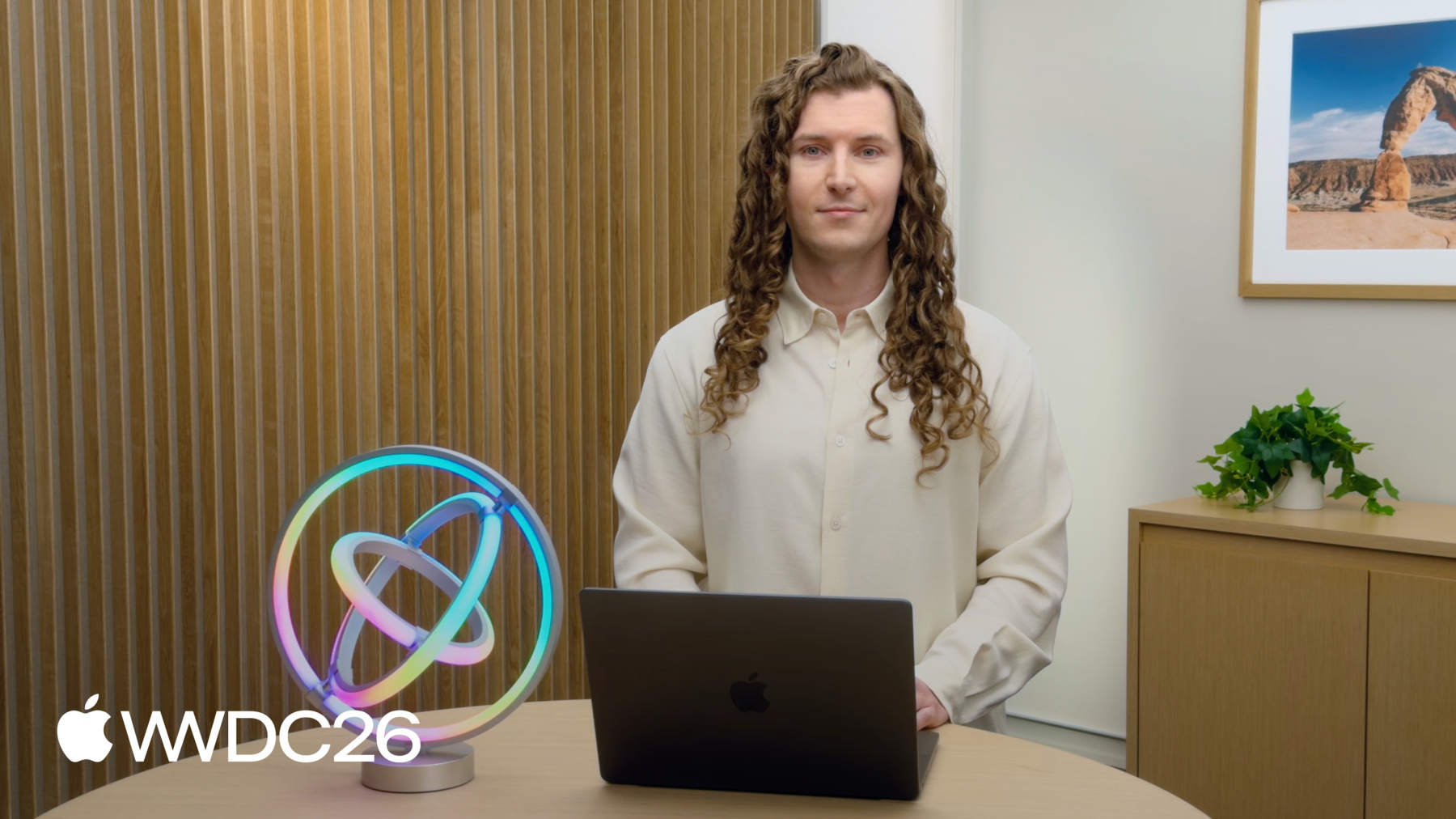
你好 我是David Nadoba UI 框架团队的工程师 今天 我很高兴和你聊聊 如何使用 SwiftUI 与你现有的 AppKit 或 UIKit App 结合 SwiftUI 从一开始就被设计为 能与 AppKit 和 UIKit 很好地协作 就像 Swift 被设计为 能与 Objective-C 协同工作一样 这非常适合逐步采用 无需重写所有内容 或从头开始
Apple 多年来一直 在使用这种策略 Logic Pro 使用 SwiftUI 制作插件 比如 Quantec Room Simulator
以及 Beat Breaker 插件 同时支持 macOS 和 iPadOS Xcode 中的 Coding Assistant 从一开始就使用 SwiftUI 在 Xcode 27 中 从侧边栏扩展到了编辑器
即使没有显式采用 如今大多数 App 也隐式使用 SwiftUI UI 框架团队将新设计 作为一个契机 用 SwiftUI 实现了控件 现在 即使你使用 AppKit 类型 比如 NSSlider
NSSwitch 和 NSSegmentedControl SwiftUI 在底层被用于 渲染这些视图及更多内容 这些控件以及 OS 其他部分 使用的 Liquid Glass 也使用 SwiftUI 来共享 大部分实现代码 跨框架和平台 在这个视频里 我将分享如何 在更多地方开始采用 SwiftUI 我将聚焦于 macOS 但这些概念同样适用于 所有其他 Apple 平台
首先 我将展示如何使用 @Observable 自动更新你的 NSView 甚至在使用 SwiftUI 之前 接着 我将讨论何时适合 考虑使用 SwiftUI 并将其集成到 NSView 层级中
我还会展示如何将 NSGestureRecognizer 直接添加到你的 SwiftUI View 中 然后 我将在 SwiftUI 中 创建菜单项 并将其添加到现有的主菜单中
最后 我将介绍如何使用 SwiftUI Scenes 在你现有的 NSApplicationDelegate 中 在本次演讲过程中 我将使用我制作的一个 现有 AppKit App 的简化版本
这个 App 可以控制灯光 比如我桌上这个可寻址环形灯
它有控件可以改变颜色
以及运行动画
我将带你了解滑块的工作原理 然后演示 @Observable 宏 如何提供帮助 这个 App 使用了一个颜色选择器 类似于系统颜色面板 或颜色井 但以内联方式显示 让控件始终触手可及 颜色通过 3 个滑块控制 带有自定义轨道渐变和旋钮 当我移动一个滑块的旋钮时 它会以新选择的颜色 重新绘制自身 与此同时 所有其他滑块 也会相应地更新
当滑块自身的值改变时 它会自动重新绘制 在我的情况下 改变的值 也会影响其他滑块的外观 但 AppKit 不会 自动重绘它们
我目前需要手动告知 AppKit 重绘饱和度和亮度滑块 每当色相值改变时 这是通过将 needsDisplay 设为 true 来完成的
对于其他所有滑块的值变化 也需要类似地实现 以及其他外部变化 AppKit 还支持对 @Observable 类型 属性的自动观察 通过将 @Observable 宏添加到 Swift 类来利用这一点 所有可变变量都会 参与观察系统
这些滑块是作为 NSSliderCell 的子类实现的 并通过覆盖某些绘制方法 比如 drawKnob 来自定义外观
我只需要在 drawKnob 方法内 访问我的新 ColorModel 的属性 在 drawKnob 方法中
AppKit 会追踪每次访问 并在任何被访问的属性改变时重绘 不再需要手动将 needsDisplay 设为 true
这适用于任何作为 NSView draw 一部分被调用的绘制方法 比如 drawKnob 或来自 NSSliderCell 的 drawBar 方法
NSView.draw(_:) 只是支持 观察的其中一个方法 updateConstraints() layout() updateLayer() 以及 NSViewController 的等效方法 也支持观察
UIKit 有更多方法 超出了 UIView 的范围 扩展到 UIButton UICollectionViewCell 等等
你可以将此集成向后部署 到 macOS 15 通过将 NSObservationTrackingEnabled 添加到你的 Info.plist 以及添加 UIObservationTrackingEnabled 部署到 iOS 18 在 2026 年及之后的版本中 它默认启用 若想深入了解 UIKit 中的观察追踪 请观看 WWDC25 的 "What's new in UIKit"
好了 来看看它的实际效果 我将增加亮度
并将色相改为红色
很好 所有滑块都更新了 新颜色通过网络 发送到了灯光
采用 @Observable 是一个很好的开始 可以在你的 NSView 和 NSViewController 中获得自动更新 当你想实现新功能时 它也让迁移到 SwiftUI 变得更容易 说到新功能 我有一个关于不同颜色 选择器设计的想法 色相从红色开始 经过所有颜色 再回到红色 我想将它表示为一个 圆形滑块
我可以将饱和度和亮度 表示为外部色相环 内侧的两个半圆
就在正中间 我想绘制一个圆圈 预览最终颜色 整个绘制代码和交互 都将完全改变 所以现在是迁移到 SwiftUI 的好时机
我可以复用相同的 @Observable ColorModel 来自之前基于 NSSlider 的颜色选择器
在视图的 body 中 我使用 Canvas 视图 它让我可以访问 即时模式绘图 API
Canvas 与 AppKit 或 UIKit 中的 drawRect 非常相似 每次重绘都会以新的 GraphicsContext 调用你的闭包 你可以发出绘图命令 如描边 填充 变换和滤镜 直接作用于它 你也可以在 SwiftUI 中 复用现有的 CoreGraphics 绘图代码 只需调用 withCGContext API 如需了解 Canvas 的入门知识 请观看 WWDC21 的 "Add rich graphics to your SwiftUI app"
如果想了解如何将 SwiftUI 与 Metal Shaders 结合使用 请观看 WWDC26 的 "Compose advanced graphics effects with SwiftUI" 我还有很多地方 颜色选择器嵌入在 NSView 层级结构中
我可以将 SwiftUI 视图 包装在 NSHostingView 中 它是 NSView 的子类
由于我已经将模型 迁移到了 @Observable 这基本上就是我需要做的全部 如需深入了解 NSHostingView 及相关类型 请观看 WWDC 2022 的 "Use SwiftUI with AppKit" 和 "Use SwiftUI with UIKit" 在展示新颜色选择器的 实际效果之前 我还想再添加一个功能
我想快速将亮度和饱和度 重置为 100% 只需一次 Force Click 即在触控板上用力按压 我已经有一个 用于此功能的 NSGestureRecognizer 在 App 的其他部分也有使用 我可以通过 NSGestureRecognizerRepresentable 将其引入新的 SwiftUI View
我首先创建一个 符合以下协议的新 struct 即 NSGestureRecognizerRepresentable 协议
在 makeNSGestureRecognizer 中 初始化并返回我的 NSGestureRecognizer 子类
ForceClickGestureRecognizer 是我在 App 其他地方使用的类型 它能识别压力阶段 2 何时被触发 这表示已施加足够的压力 以触发 Force Click
手势被识别时会调用 handleNSGestureRecognizerAction
这里正是将饱和度 和亮度重置为 100% 的地方 回到 HSBColorPicker 的 SwiftUI 视图中 现在可以通过 .gesture modifier 添加这个手势 就像普通的 SwiftUI Gesture 一样
ForceClickReset 手势与 现有的拖拽手势协同工作 无需任何其他改动 SwiftUI 还提供了 更多 Representable 协议 比如 NSViewRepresentable 可以将 NSViews 嵌入 到 SwiftUI 视图中 Force Click 并非在 所有输入设备上都可用 比如 Magic Mouse 或 MacBook Neo 的触控板 为了确保每个人 都能使用这个快捷方式 我需要添加另一种 访问此功能的方式 这里我会添加一个带有 键盘快捷键的菜单项
我的 App 使用 AppKit 的 NSMenu 作为主菜单 我来讲解如何用 SwiftUI 添加新菜单项 我首先创建一个 符合 View 协议的新 struct 它可以访问共享的 ColorModel
在视图的 body 中 我创建一个带标签的 Button 以及一个将亮度和饱和度 重置为 100% 的 Action 闭包
将修改包裹在 withAnimation 中 可让 SwiftUI 为变化添加动画
为了快速访问 我添加了 keyboardShortcut 我还添加了一个 使用 paletteStyle 的 Picker 用于精确选择常用颜色
现在我需要将这个 SwiftUI View 添加到主菜单
为此我用 ColorMenu 视图 初始化一个 NSHostingMenu
NSHostingMenu 是 NSMenu 的子类 因此具有相关属性 比如用于配置菜单的 title
剩下要做的就是 创建一个 NSMenuItem 将 colorMenu 设为其子菜单 并添加到 mainMenu
现在是时候试用一下了 我来打开它
依次切换所有色调至绿色
我来按几次键盘快捷键 降低亮度
然后用菜单项 将其完全关闭
Force Click 时 NSGestureRecognizer 会重置亮度
我逐步将这个自定义 SwiftUI 控件添加到了 App 中
AppKit App 的其余部分 继续正常运行 一如既往
最后一步 介绍如何将完整的 SwiftUI Scenes 引入 App 使用现有的 App Delegate 即可
我一直想让用户 快速访问 灯光的颜色或亮度调节功能 为此 我可以添加一个菜单栏扩展项 SwiftUI 的 MenuBarExtra Scene 只需几行代码即可实现 NSHostingSceneRepresentation 包装一个 SwiftUI Scene 允许从现有的 AppKit App 动态添加它 添加 Scene 的好地方是 applicationWillFinishLaunching 在你的 NSApplicationDelegate 中
调用 addSceneRepresentation 并传入你的 Scenes SwiftUI 会处理剩余的工作
如果你有 MenuBarExtra Scene 最好让用户能够 移除并重新插入它 Settings scene 是添加 Toggle 的 理想位置 用于控制 MenuBarExtra Scene 是否被插入
NSHostingSceneRepresentation 有一个 Environment 属性 它暴露了 openSettings() Action
可以从 @IBAction 中 以编程方式打开设置窗口
我从 App 的主菜单中 打开设置
并启用菜单栏扩展项
让我快速打开颜色选择器
最后一次打开灯光
如需了解更多 SwiftUI Scenes 的内容 请观看 WWDC22 的 "Bring multiple windows to your SwiftUI app" 我展示了如何以不同方式 混合使用 SwiftUI 和 AppKit 选择正确的结合方式 取决于你的 App 以及你要解决的问题
我今天介绍的所有 API 已经在 2026 版本 或更早版本中可用
一个很好的第一步 是尝试 @Observable 让你的模型和 NSViews 自动保持同步 使向 SwiftUI 的过渡 更加无缝 在实现新组件时 考虑使用 SwiftUI 或重写现有组件时也是如此
将现有的手势识别器子类 添加到 SwiftUI 视图中 即便是现有 App 也要从 SwiftUI 开始构建新 Scenes 请记住 没有要求 App 必须完全使用 SwiftUI 才能从中受益
感谢收看 感谢你打造出色的 App
-
-
3:39 - Observation in AppKit
// Observation in AppKit import Observation @Observable @MainActor final class ColorModel { var hue: Double = 0.6 var saturation: Double = 1.0 var brightness: Double = 1.0 } -
6:28 - Circular color picker
// Circular color picker import SwiftUI import Observation @Observable @MainActor final class ColorModel { var hue: Double = 0.6 var saturation: Double = 1.0 var brightness: Double = 1.0 } // MARK: - Picker View @Animatable struct HSBColorPicker: View { var hue: Double var saturation: Double var brightness: Double @AnimatableIgnored var model: ColorModel init(model: ColorModel) { self.model = model self.hue = model.hue self.saturation = model.saturation self.brightness = model.brightness } var body: some View { Canvas { context, size in let metrics = PickerMetrics(size: size) drawPicker(in: &context, metrics: metrics, hue: hue, saturation: saturation, brightness: brightness) } .contentShape(Circle()) .modifier(ColorPickerDragGesture(model: model)) .aspectRatio(1, contentMode: .fit) } } // MARK: - Drag Gesture private struct ColorPickerDragGesture: ViewModifier { var model: ColorModel private enum Ring { case hue, saturation, brightness } @State private var draggedRing: Ring? func body(content: Content) -> some View { GeometryReader { proxy in content.gesture( DragGesture(minimumDistance: 0, coordinateSpace: .local) .onChanged { onDrag(to: $0.location, size: proxy.size) } .onEnded { _ in draggedRing = nil } ) } } private func onDrag(to location: CGPoint, size: CGSize) { let metrics = PickerMetrics(size: size) let point = CGPoint(x: location.x - metrics.mid.x, y: location.y - metrics.mid.y) if draggedRing == nil { let distance = hypot(point.x, point.y) if distance >= metrics.radius - metrics.ringWidth - metrics.gap / 2 { draggedRing = .hue } else if distance >= metrics.radius - metrics.ringWidth * 2 - metrics.gap { draggedRing = point.x > 0 ? .brightness : .saturation } } switch draggedRing { case .hue: model.hue = (angle0To2Pi(point) / (2 * .pi) + 0.25).truncatingRemainder(dividingBy: 1) case .saturation: model.saturation = leftSemicircleValue(point) case .brightness: model.brightness = 1 - rightSemicircleValue(point) case nil: break } } } // MARK: - Metrics struct PickerMetrics { let mid: CGPoint let radius: CGFloat let ringWidth: CGFloat let gap: CGFloat = 8 init(size: CGSize) { let border: CGFloat = 1 // reserve room so the outer ring's stroke isn't clipped mid = CGPoint(x: size.width / 2, y: size.height / 2) radius = (min(size.width, size.height) - 2 * border) / 2 ringWidth = radius / 3 } var diameter: CGFloat { radius * 2 } var innerRadius: CGFloat { (diameter - 2 * ringWidth - gap) / 2 } var centerRadius: CGFloat { radius - 2 * ringWidth - gap } } // MARK: - Geometry Helpers func angle0To2Pi(_ point: CGPoint) -> CGFloat { let a = atan2(point.y, point.x) return a >= 0 ? a : a + 2 * .pi } func rightSemicircleValue(_ point: CGPoint) -> CGFloat { let angle = atan2(point.y, point.x) return point.x >= 0 ? (angle + .pi / 2) / .pi : (point.y >= 0 ? 1 : 0) } func leftSemicircleValue(_ point: CGPoint) -> CGFloat { guard point.x <= 0 else { return point.y >= 0 ? 1 : 0 } return (atan2(point.y, -point.x) + .pi / 2) / .pi } private extension Path { /// A circle whose stroke of `lineWidth` lands inside `radius`. init(ring radius: CGFloat, center: CGPoint, lineWidth: CGFloat) { let inset = radius - lineWidth / 2 self.init(ellipseIn: CGRect(x: center.x - inset, y: center.y - inset, width: inset * 2, height: inset * 2)) } } // MARK: - Drawing private func drawPicker(in context: inout GraphicsContext, metrics: PickerMetrics, hue: Double, saturation: Double, brightness: Double) { drawHueRing(in: &context, metrics: metrics, hue: hue, saturation: saturation, brightness: brightness) drawValueRings(in: &context, metrics: metrics, hue: hue, saturation: saturation, brightness: brightness) drawCenter(in: &context, metrics: metrics, hue: hue, saturation: saturation, brightness: brightness) } private func drawHueRing(in context: inout GraphicsContext, metrics: PickerMetrics, hue: Double, saturation: Double, brightness: Double) { let ring = Path(ring: metrics.radius, center: metrics.mid, lineWidth: metrics.ringWidth) // A custom metal shader would be work great here as well let colors = stride(from: 0.0, through: 1, by: 1.0 / 64).map { Color(hue: $0, saturation: saturation, brightness: brightness) } context.stroke(ring, with: .conicGradient(Gradient(colors: colors), center: metrics.mid, angle: .degrees(-90)), lineWidth: metrics.ringWidth) context.stroke(ring.strokedPath(StrokeStyle(lineWidth: metrics.ringWidth)), with: .color(.black), lineWidth: 1) // Tick marks are left as a fun exercise for the reader. drawKnob(in: &context, metrics: metrics, radius: metrics.radius, rotation: 2 * .pi * hue + .pi) } private func drawValueRings(in context: inout GraphicsContext, metrics: PickerMetrics, hue: Double, saturation: Double, brightness: Double) { drawSemicircle(in: &context, metrics: metrics, start: .degrees(90), conicAngle: .degrees(0), stops: (0...1).map { Gradient.Stop(color: Color(hue: hue, saturation: 1 - Double($0), brightness: brightness), location: 0.25 + Double($0) * 0.5) }) drawSemicircle(in: &context, metrics: metrics, start: .degrees(270), conicAngle: .degrees(180), stops: (0...1).map { Gradient.Stop(color: Color(hue: hue, saturation: saturation, brightness: 1 - Double($0)), location: 0.25 + Double($0) * 0.5) }) drawKnob(in: &context, metrics: metrics, radius: metrics.innerRadius, rotation: .pi * (1 - saturation)) drawKnob(in: &context, metrics: metrics, radius: metrics.innerRadius, rotation: .pi * (1 - brightness) + .pi) } private func drawSemicircle(in context: inout GraphicsContext, metrics: PickerMetrics, start: Angle, conicAngle: Angle, stops: [Gradient.Stop]) { var path = Path() path.addArc(center: metrics.mid, radius: metrics.innerRadius - metrics.ringWidth / 2, startAngle: start, endAngle: start + .degrees(180), clockwise: false) let band = path.strokedPath(StrokeStyle(lineWidth: metrics.ringWidth)) context.fill(band, with: .conicGradient(Gradient(stops: stops), center: metrics.mid, angle: conicAngle)) context.stroke(band, with: .color(.black), lineWidth: 1) // Tick marks are left as a fun exercise for the reader. } private func drawCenter(in context: inout GraphicsContext, metrics: PickerMetrics, hue: Double, saturation: Double, brightness: Double) { let r = metrics.centerRadius let disc = Path(ellipseIn: CGRect(x: metrics.mid.x - r, y: metrics.mid.y - r, width: r * 2, height: r * 2)) context.fill(disc, with: .color(Color(hue: hue, saturation: saturation, brightness: brightness))) context.stroke(disc, with: .color(.black)) } private func drawKnob(in context: inout GraphicsContext, metrics: PickerMetrics, radius: CGFloat, rotation: CGFloat) { let lineWidth: CGFloat = 5 let inset: CGFloat = 3 + lineWidth / 2 var path = Path() path.move(to: CGPoint(x: 0, y: radius - metrics.ringWidth + inset)) path.addLine(to: CGPoint(x: 0, y: radius - inset)) path = path.applying(CGAffineTransform(rotationAngle: rotation)) path = path.applying(CGAffineTransform(translationX: metrics.mid.x, y: metrics.mid.y)) context.stroke(path, with: .color(.black.opacity(0.8)), style: StrokeStyle(lineWidth: lineWidth + 1, lineCap: .round)) context.stroke(path, with: .color(.white), style: StrokeStyle(lineWidth: lineWidth, lineCap: .round)) } #Preview { @Previewable @State var model = ColorModel() HSBColorPicker(model: model) .frame(width: 320, height: 320) .padding() } -
7:21 - Hosting SwiftUI in AppKit
// Hosting SwiftUI in AppKit NSHostingView( rootView: HSBColorPicker(model: model) ) -
8:14 - Mix NSGestureRecognizer with SwiftUI
// Mix NSGestureRecognizer with SwiftUI import SwiftUI import AppKit @Observable @MainActor final class ColorModel { var hue: Double = 0.6 var saturation: Double = 1.0 var brightness: Double = 1.0 } struct ForceClickReset: NSGestureRecognizerRepresentable { var model: ColorModel func makeNSGestureRecognizer(context: Context) -> ForceClickGestureRecognizer { ForceClickGestureRecognizer() } func handleNSGestureRecognizerAction(_ recognizer: ForceClickGestureRecognizer, context: Context) { withAnimation { model.saturation = 1 model.brightness = 1 } } } final class ForceClickGestureRecognizer: NSGestureRecognizer { private var didActivate = false override func pressureChange(with event: NSEvent) { if event.stage >= 2 && !didActivate { didActivate = true state = .ended } } override func mouseDown(with event: NSEvent) { didActivate = false state = .possible } override func mouseUp(with event: NSEvent) { didActivate = false state = .possible } } -
9:42 - Adding ColorMenu to the Main Menu
// Adding ColorMenu to the Main Menu import AppKit import SwiftUI import Observation @Observable @MainActor final class ColorModel { var hue: Double = 0.6 var saturation: Double = 1.0 var brightness: Double = 1.0 } // Menu definition in SwiftUI. struct ColorMenu: View { var model: ColorModel private static let hues: [(name: String, hue: Double)] = [ ("Red", 0), ("Yellow", 0.17), ("Green", 0.33), ("Cyan", 0.5), ("Blue", 0.67), ("Purple", 0.83), ] var body: some View { Button("Full Intensity") { withAnimation { model.saturation = 1 model.brightness = 1 } } .keyboardShortcut(.upArrow, modifiers: [.command, .shift]) Button("Blackout") { withAnimation { model.brightness = 0 } } .keyboardShortcut(.downArrow, modifiers: [.command, .shift]) Divider() Button("Brighten") { withAnimation { model.brightness = min(1, model.brightness + 0.1) } } .keyboardShortcut(.upArrow, modifiers: .command) Button("Dim") { withAnimation { model.brightness = max(0, model.brightness - 0.1) } } .keyboardShortcut(.downArrow, modifiers: .command) Divider() Picker("Color", selection: Bindable(model).hue) { ForEach(Self.hues, id: \.hue) { entry in Label(entry.name, systemImage: "circle.fill") .tint(Color(hue: entry.hue, saturation: 1, brightness: 1)) .tag(entry.hue) } } .pickerStyle(.palette) } } @MainActor class AppDelegate: NSObject, NSApplicationDelegate { let colorModel = ColorModel() func setupMainMenu() { let mainMenu = NSMenu() let colorMenu = NSHostingMenu(rootView: ColorMenu(model: colorModel)) colorMenu.title = "Color" let colorMenuItem = NSMenuItem() colorMenuItem.submenu = colorMenu mainMenu.addItem(colorMenuItem) } } #Preview { Menu("Color") { ColorMenu(model: ColorModel()) }.padding() } -
11:36 - Adding SwiftUI scenes dynamically
// Adding SwiftUI scenes dynamically

import AppKit
import SwiftUI
import Observation

@MainActor
class AppDelegate: NSObject, NSApplicationDelegate {
    let model = AppModel()
    var openSettingsAction: (() -> Void)?

    func applicationWillFinishLaunching(_ notification: Notification) {
        let scenes = NSHostingSceneRepresentation {
            LightMenuBarExtra(appModel: model)
            LightSettings(appModel: model)
        }
        NSApplication.shared.addSceneRepresentation(scenes)
        openSettingsAction = {
            scenes.environment.openSettings()
        }
    }

    @IBAction func openSettings(_ sender: Any?) {
        openSettingsAction?()
    }
}

@Observable @MainActor
final class ColorModel {
    var hue: Double = 0.6
    var saturation: Double = 1.0
    var brightness: Double = 1.0

    var color: Color {
        Color(hue: hue, saturation: saturation, brightness: brightness)
    }
}

@Observable @MainActor
final class AppModel {
    var showMenuBarExtra: Bool = true

    var colorModel = ColorModel()

    var startUniverse: Int = 1
    var numberOfPixels: Int = 50

    var maxBrightness: Double = 1.0
    var isConnected: Bool = false
}

struct LightMenuBarExtra: Scene {
    var appModel: AppModel

    var body: some Scene {
        MenuBarExtra("Light Mix", systemImage: "lightbulb.fill", isInserted: Bindable(appModel).showMenuBarExtra) {
            MenuBarContent(appModel: appModel)
        }
        .menuBarExtraStyle(.window)
    }
}


struct MenuBarContent: View {
    @Bindable var appModel: AppModel

    var body: some View {
        // TODO: Use HSBColorPicker
        VStack {
            RoundedRectangle(cornerRadius: 10)
                .fill(appModel.colorModel.color)
                .frame(height: 80)
                .overlay(RoundedRectangle(cornerRadius: 10).stroke(.black.opacity(0.1)))

            LabeledContent("Brightness") {
                Slider(value: $appModel.colorModel.brightness)
                    .frame(width: 140)
            }
        }
        .padding()
        .frame(width: 280)
    }
}

struct LightSettings: Scene {
    var appModel: AppModel

    var body: some Scene {
        Settings {
            SettingsView(appModel: appModel)
        }
    }
}

struct SettingsView: View {
    var appModel: AppModel

    var body: some View {
        TabView {
            Tab("General", systemImage: "gearshape") {
                GeneralTab(appModel: appModel)
            }
            Tab("Output", systemImage: "antenna.radiowaves.left.and.right") {
                OutputTab(appModel: appModel)
            }
            Tab("About", systemImage: "info.circle") {
                AboutTab()
            }
        }
        .formStyle(.grouped)
        .scrollDisabled(true)
        .frame(width: 460)
        .fixedSize(horizontal: false, vertical: true)
    }
}

struct GeneralTab: View {
    @Bindable var appModel: AppModel

    var body: some View {
        Form {
            Section("Appearance") {
                Toggle("Show in Menu Bar", isOn: $appModel.showMenuBarExtra)
            }
            Section("DMX Configuration") {
                LabeledContent("Start Universe") {
                    TextField("", value: $appModel.startUniverse, format: .number)
                        .textFieldStyle(.roundedBorder)
                        .frame(width: 80)
                }
                LabeledContent("Number of Pixels") {
                    TextField("", value: $appModel.numberOfPixels, format: .number)
                        .textFieldStyle(.roundedBorder)
                        .frame(width: 80)
                }
            }
        }
    }
}

struct OutputTab: View {
    @Bindable var appModel: AppModel

    var body: some View {
        Form {
            Section("Output") {
                LabeledContent("Max Brightness") {
                    HStack {
                        Slider(value: $appModel.maxBrightness, in: 0...1)
                        Text("\(Int((appModel.maxBrightness * 100).rounded()))%")
                            .monospacedDigit()
                            .foregroundStyle(.secondary)
                            .frame(width: 40, alignment: .trailing)
                    }
                }
            }
        }
    }
}

struct AboutTab: View {
    var body: some View {
        VStack(spacing: 16) {
            Image(systemName: "lightbulb.fill")
                .font(.system(size: 48))
                .foregroundStyle(.yellow.gradient)

            Text("Light Mix")
                .font(.title2.bold())

            Text("WWDC26 — Bring SwiftUI to your AppKit and UIKit App")
                .multilineTextAlignment(.center)
                .foregroundStyle(.secondary)
        }
    }
}

#Preview("Menu Bar") {
    MenuBarContent(appModel: AppModel())
}

#Preview("Settings") {
    SettingsView(appModel: AppModel())
}
-